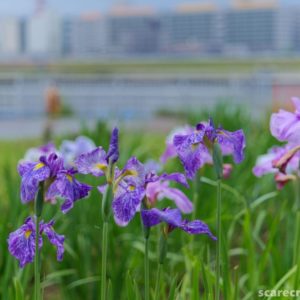
The photos from my recent trip to Kobe were taken in RAW as usual, and I decided to try color grading using LUTs just for fun. I’m still very much a beginner, but I’ve compiled a list of tips (based on what I’ve learned so far) for when I do this kind of work. Long post ahead.
*I am not responsible for any actual harm caused to anyone who reads it and takes it seriously or uses it as a reference.
[Conditions for this article]
Equipment: LUMIX G9ProII
Sample shooting method: Shot still images directly or shot in RAW and processed in PhotoLab8. In PhotoLab8, Adobe’s DCP file and LUMIX’s LUT were imported and used.
LUT source: Download from the following website after registering with LUMIX Color Lab.
[Basic knowledge ① What is a LUT (Look Up Table)?]
LUT is a reference and calculation tool used to convert image colors. It converts images to the desired color tone by setting output RGB values corresponding to input RGB values in advance.
For example, in the case of an 8-bit 3D LUT, R, G, and B can each take values from 0 to 255, so it is possible to link 256³ ≒ 16,777 thousand input values to the same number of output values. In practice, data is compressed by downsampling each RGB axis (e.g., downsampling to 33 values per axis results in 33³ ≒ 36,000 values being retained) and filling the gaps between grid points with calculated values.
Originally, LUTs were tools for adjusting the color tone of videos shot with Log gamma (see below), but LUMIX has recently been promoting the use of LUTs based on photo styles rather than Log gamma for both videos and still images.
Currently, the most widely used format is a 3D LUT provided in a .cube file. This file is imported into a camera or retouching tool on a PC for use.
>>>Sample images>>>
Left: Unprocessed original image
Right: Image with LUT “Old Cinema S” applied “Recreates a retro movie-like atmosphere” “Adds green to the shadows and gives the overall image a lighter color tone”
Both were processed in PhotoLab8. Regardless of whether it is effective or not, it clearly shows the ‘color conversion’ before and after.
[Basic Knowledge ② Log Gamma and V-log]
Log gamma is a special image recording method, or data recorded using that method, which assumes that color adjustments will be made after shooting using LUTs. In video and still image shooting, brightness information is recorded logarithmically rather than according to the sensitivity of the human eye in order to allow for more leeway and prevent white clipping and black crushing. When viewed with the naked eye, images with log gamma appear dull or sleepy.
For still images, the file formats are .jpg, .tiff, and .heif, while for video, they are .mp4, .avi, and .mov. While they do not contain as much information as uncompressed RAW files, they result in smaller file sizes. Since the settings vary by equipment manufacturer, those used with Panasonic equipment are called V-log, those with Sony equipment are called S-log, and those with Canon equipment are called C-log, etc., to distinguish them.
I don’t fully understand the reasoning behind this, but when shooting in V-log, the RAW data recorded simultaneously appears about 2or3 stops darker than when shooting normally.
>>>Sample images>>>
Left: Image in V-log
Right: Image with LUT “Vlog709” applied to V-log. This LUT, which has a gamma curve equivalent to Rec.709 (the standard color space for television broadcasting), is standard on the G9proII.
Both are straight out of the camera. Beginners seeing V-log for the first time may be surprised by the “sleepy colors” and find it difficult to approach (that’s me, lol).
[Basic Knowledge ③ Difference between LUT and Photo Style]
LUT is as described above. Photo styles (the term used by LUMIX; names vary by manufacturer) are a set of preset values registered in the camera that can be repeatedly used to adjust RAW data into photos (jpg files) when shooting.
While LUTs only convert RGB values, photo styles can also adjust elements other than color, such as contrast, sharpness, and graininess.
[Registering LUTs to the camera]
On the LUMIX G9ProII, the Photo Style menu includes options such as “Landscape” and “Portrait,” as well as “V-log” and “Real-time LUT,” which appear as if they were part of the Photo Style settings. LUTs can be imported from an SD card as .cube files and registered up to 39 types.
【Automatically apply V-log or Manually overlay with Photo Style】
Generally, LUTs are color conversion calculation models for Log gamma, so in the case of LUMIX, the basic approach is to apply LUTs based on V-log. In fact, according to the G9ProII user manual, when LUTs are applied during shooting, color conversion is automatically performed using V-log (probably automatically generated within the camera) as the base, so there is nothing particularly difficult about this.
On the other hand, LUMIX is promoting the use of LUTs by creating them based on “Photo Styles,” which are familiar to still image users, rather than the less accessible V-log. They offer “Photo Style-based LUTs” on their official website, LUMIX Color Lab. When using these, automatic application does not work, so caution is required.
With Photo Style-based LUTs, you need to manually specify the base Photo Style (such as Standard or Cine Like D2) instead of V-log, otherwise the intended color tone won’t be achieved. Specifically, you use the “MY PHOTO STYLE” custom setting to “layer” the base Photo Style and the LUT.
For example, if you want to use the “Classic Blue S” LUT, you need to register the settings for layering the base photo style “Standard” and this LUT in the appropriate slot of “MY PHOTO STYLE” beforehand.
>>>Sample Images>>>
Left: LUT “Smoky Color S” “For architecture, snapshots, and blue skies” “A muted color tone” “Changes the way blue appears and removes warm tones”
Right: LUT ‘Filmlike V2’ ‘Reproduces a film-like texture’ ”Flat color tones with depth in shadows and highlights”
Each was shot with the base photo style overlaid. The purpose is not to compare the two, but to show that there are various interesting LUTs available.
【Cannot be used for in-camera RAW processing】
Note that regardless of whether you use V-log or Photo Style as the base, you must specify the desired LUT before shooting. You cannot apply a LUT to existing RAW data after shooting using in-camera RAW processing. Similarly, V-log cannot be output via in-camera RAW processing.
【How to use LUTs in post-processing with PhotoLab】
For Photo Style LUTs, in PhotoLab 8, you can install Adobe’s Photo Style profiles (.dcp files) and Panasonic’s LUTs (.cube files) separately, and apply them independently, allowing for flexible layering. However, you must specify the combination to overlay each time, so be careful not to make mistakes. In addition, while you can make complex specifications such as “overlay multiple LUTs at a ratio of 3:7” by registering custom settings in the camera, PhotoLab only allows you to specify one type of LUT and toggle it on/off.
>>>Sample images>>>
Left: LUT “Teal & Orange D2” straight out of the camera.
Right: LUT “Teal & Orange D2” applied after RAW processing in PhotoLab 8.
This LUT is advertised as reproducing “basic Teal & Orange as seen in video” and “utilizing wide dynamic range for strong contrast and color reproduction.” While the two results are not exactly the same, they are close enough for everyday use.
On the other hand, V-log-based LUTs do not work as well.
In PhotoLab, there is no way to generate the V-log that serves as the basis for color conversion from RAW (or at least I haven’t figured it out yet), so there’s no clear path forward at the moment. For now, the only option is to handle it entirely within the camera. This doesn’t fit into my usual workflow, so it’s become a research topic for the future… as usual, there’s still a long way to go.